Dashboard & Keys
Dashboard
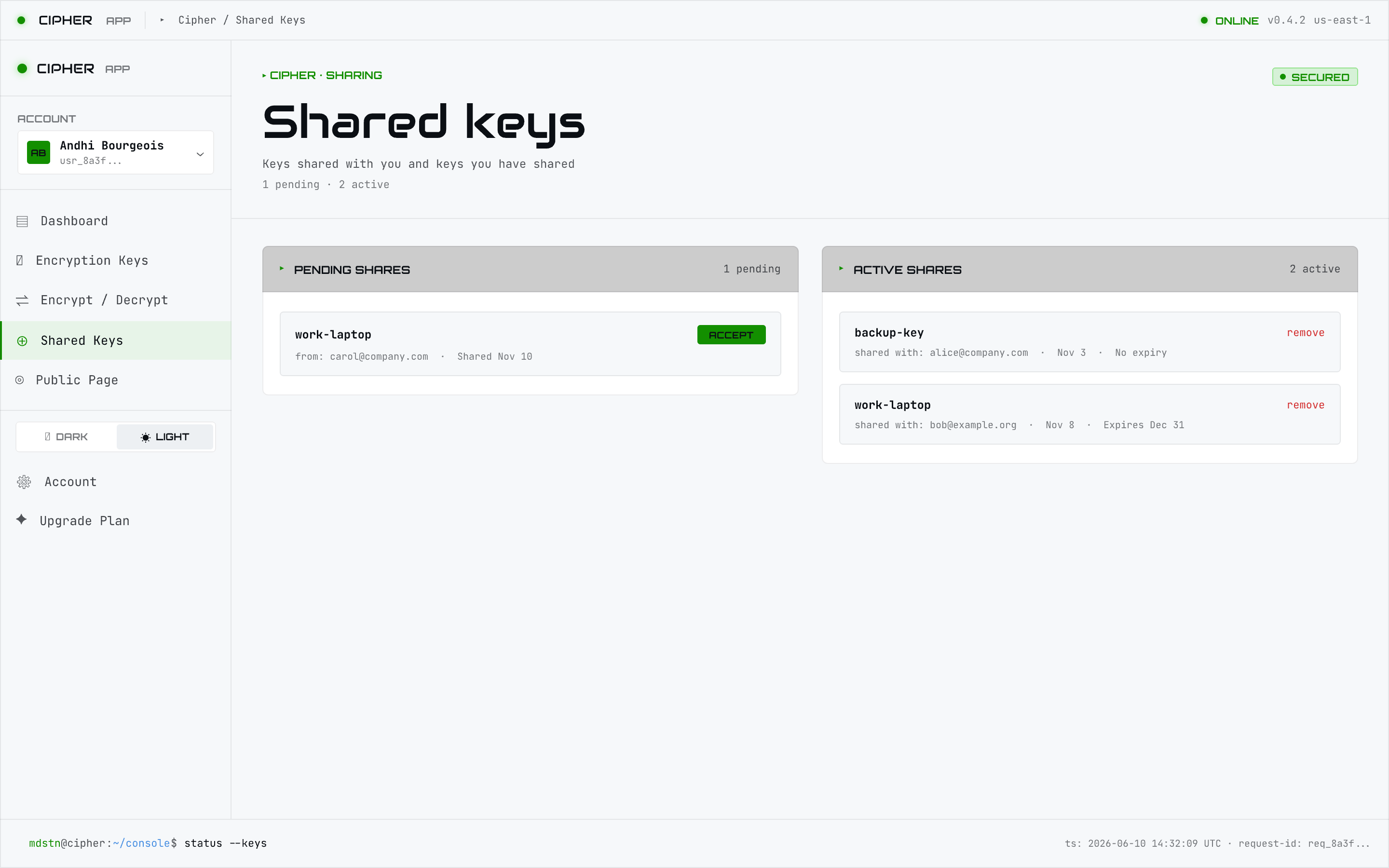
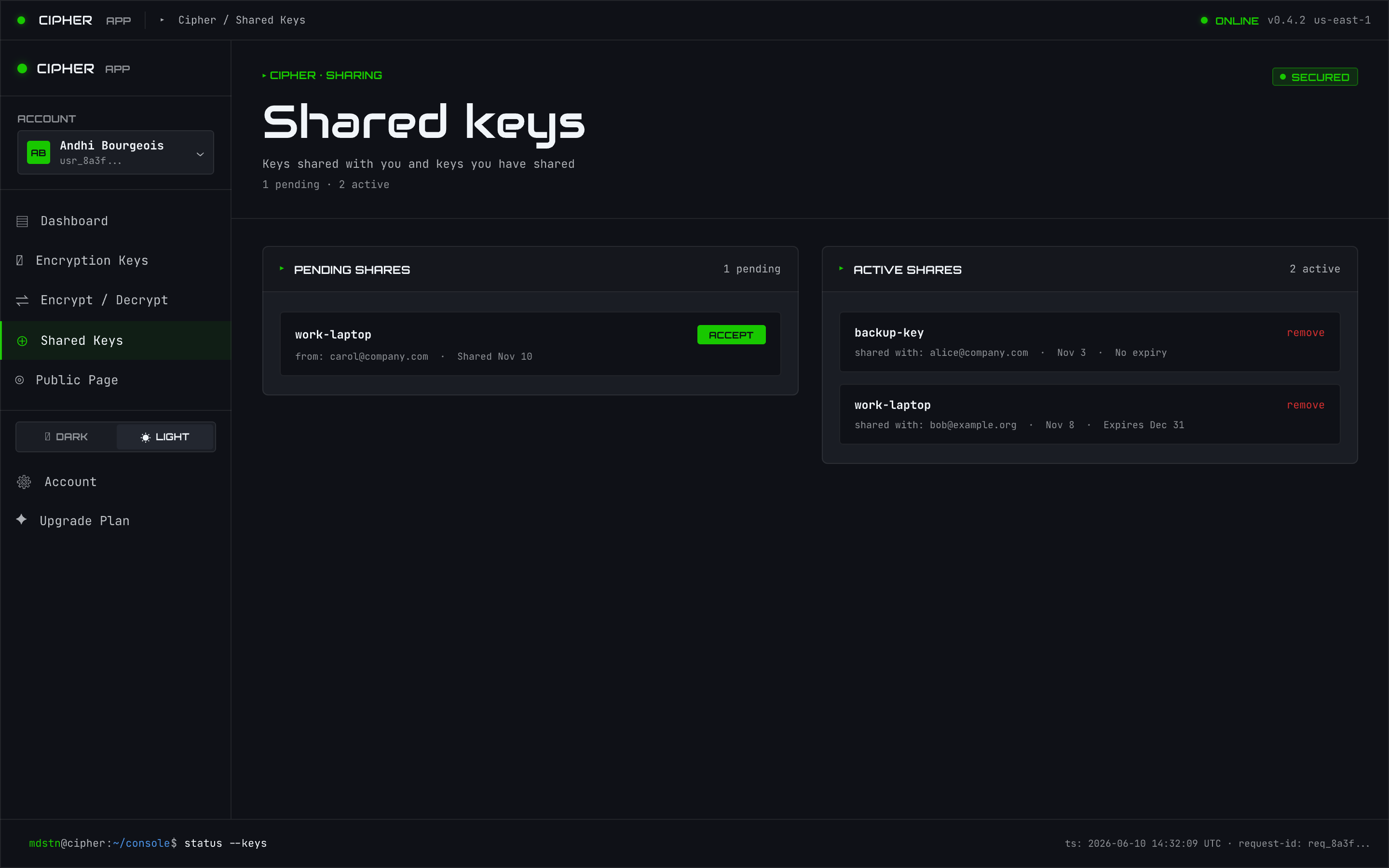
After you sign in, the dashboard (/dashboard) reflects your real account: total key count,
your public-page status with a manage link, and a short list of recent shares. On entitled
tiers it also shows a recent-activity widget; on tiers without activity history the widget is
simply omitted (no locked placeholder).
Encryption keys
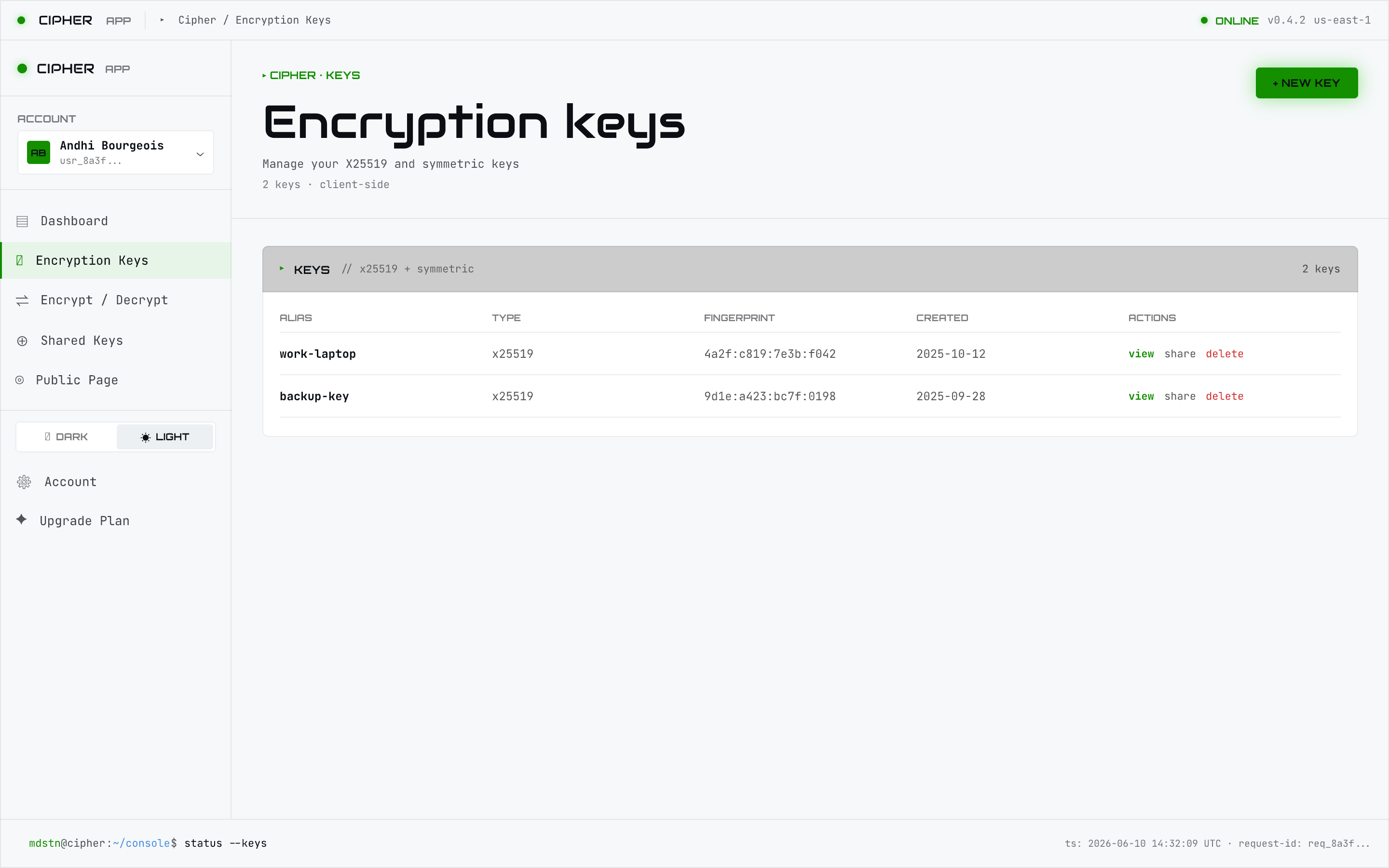
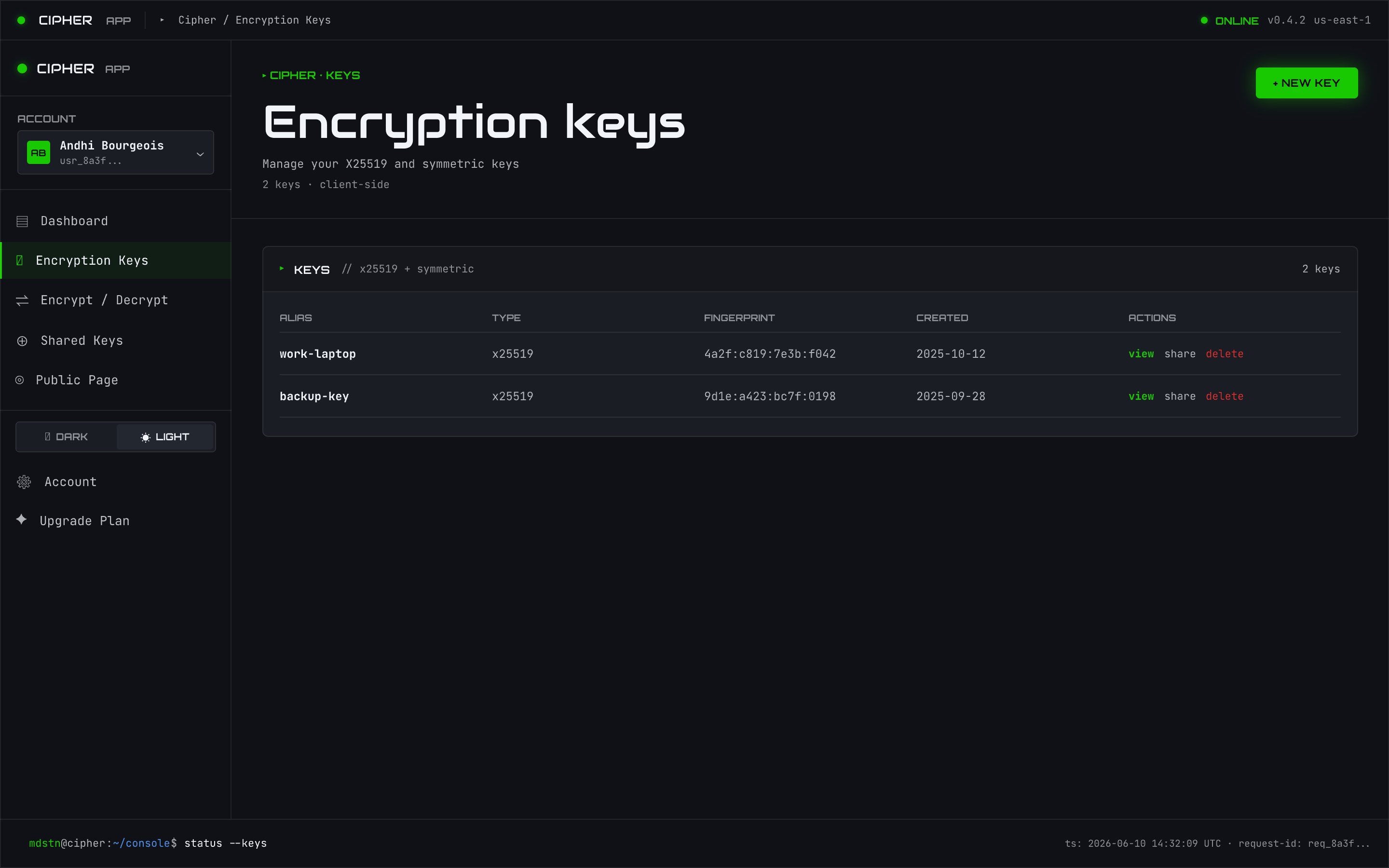
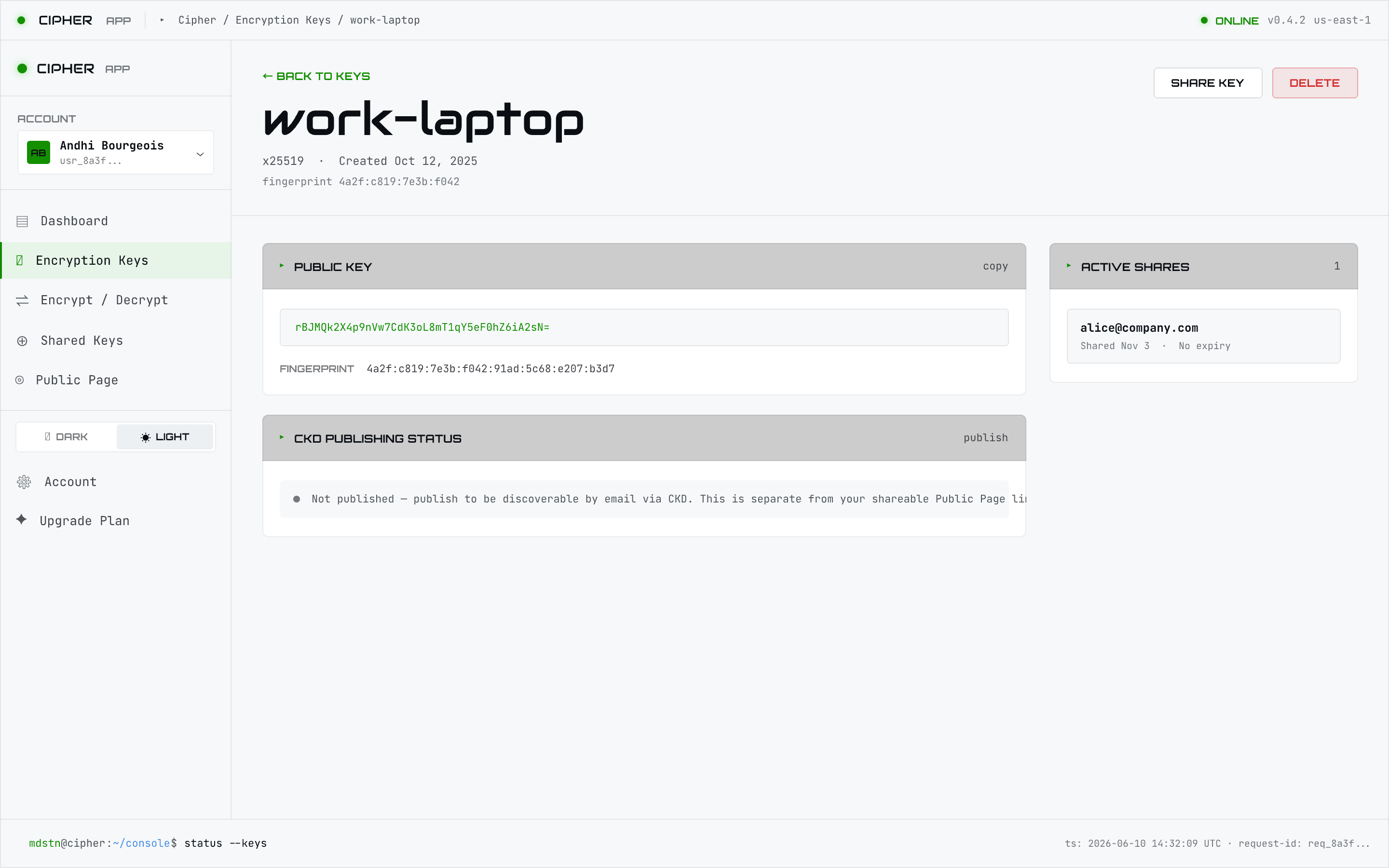
The keys page (/keys) lists every key you manage, with its type, alias, and expiry. Selecting a
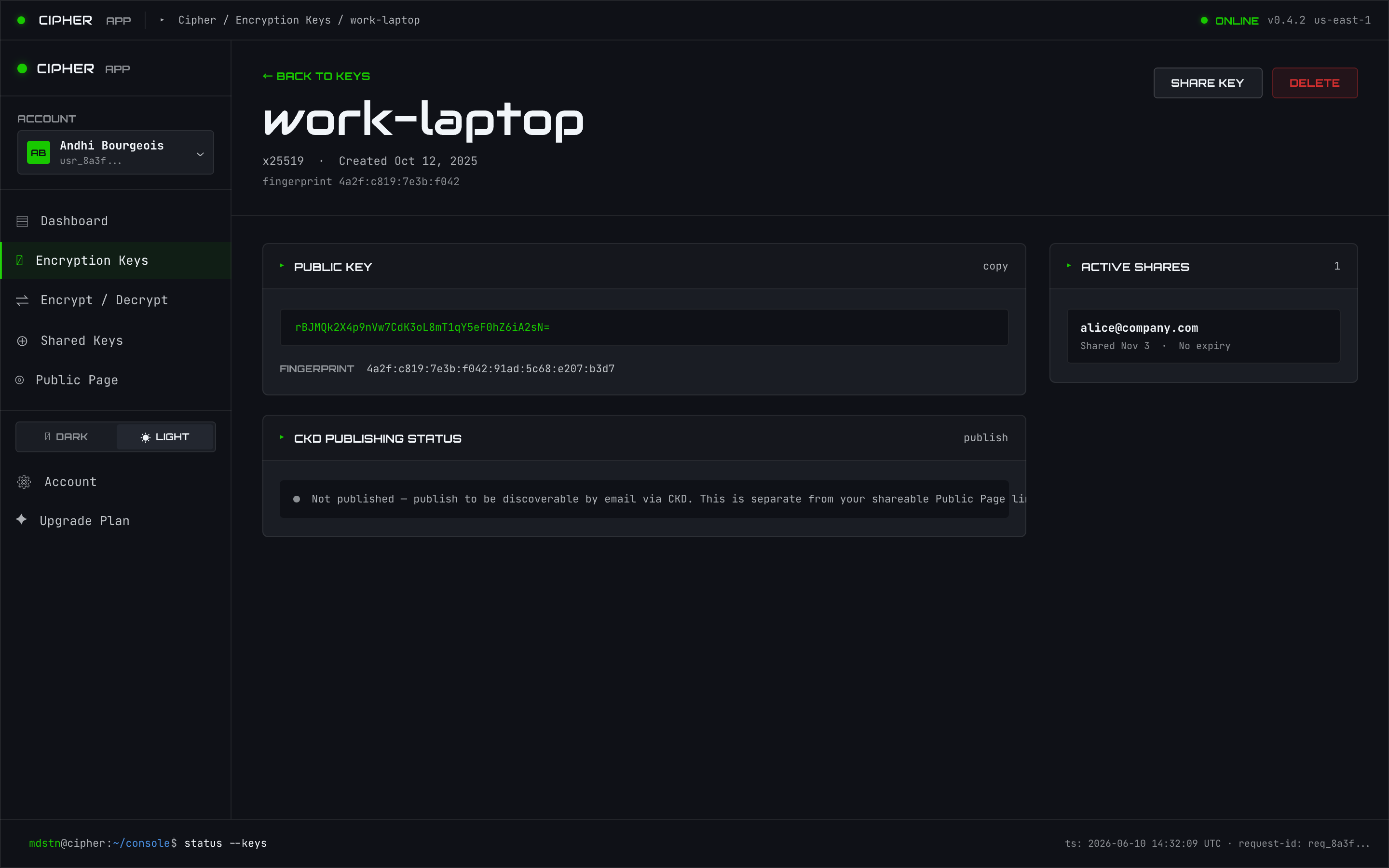
key opens its detail view, where you can copy the public key, set an alias, or delete it.
Creating a key (wizard)
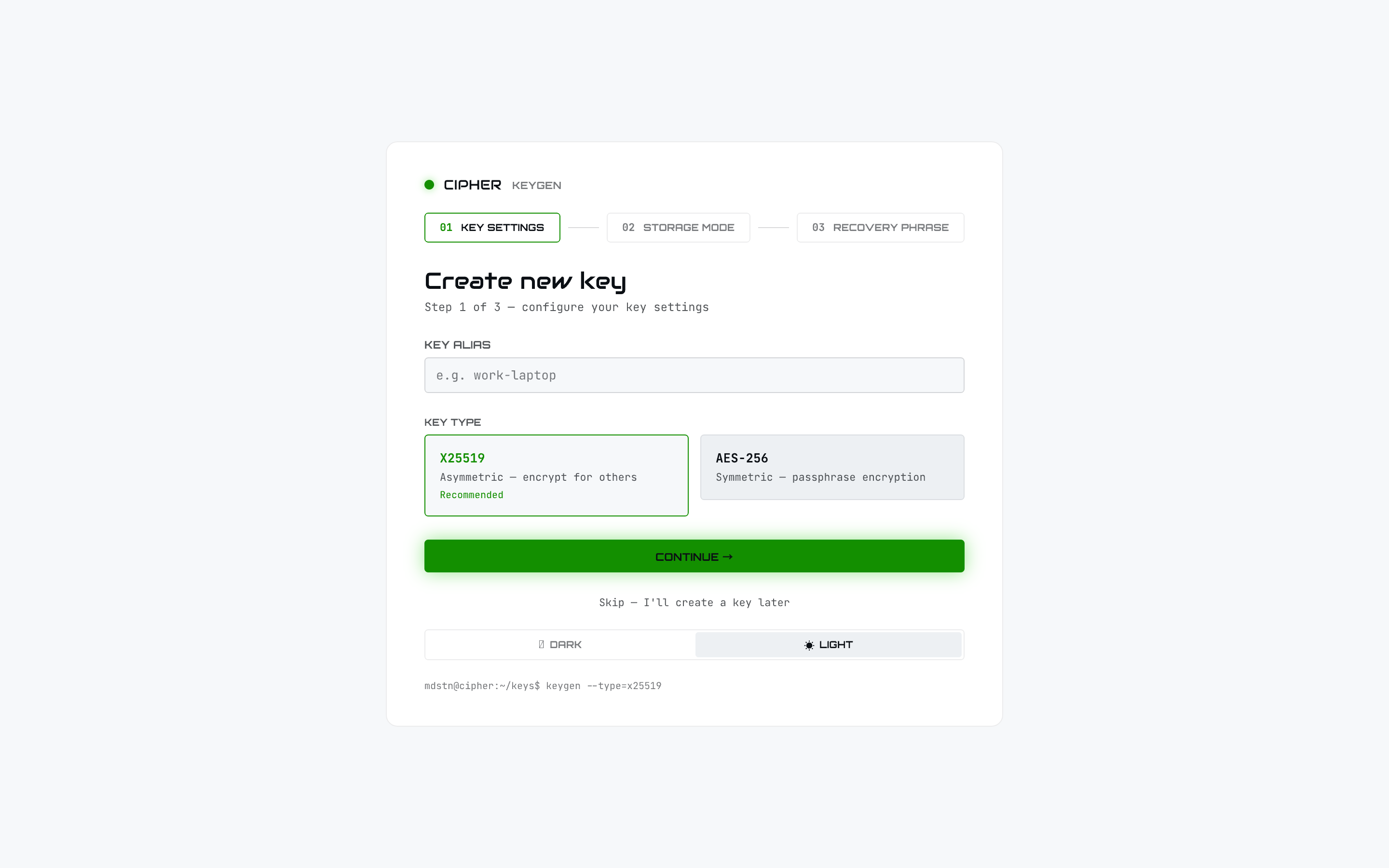
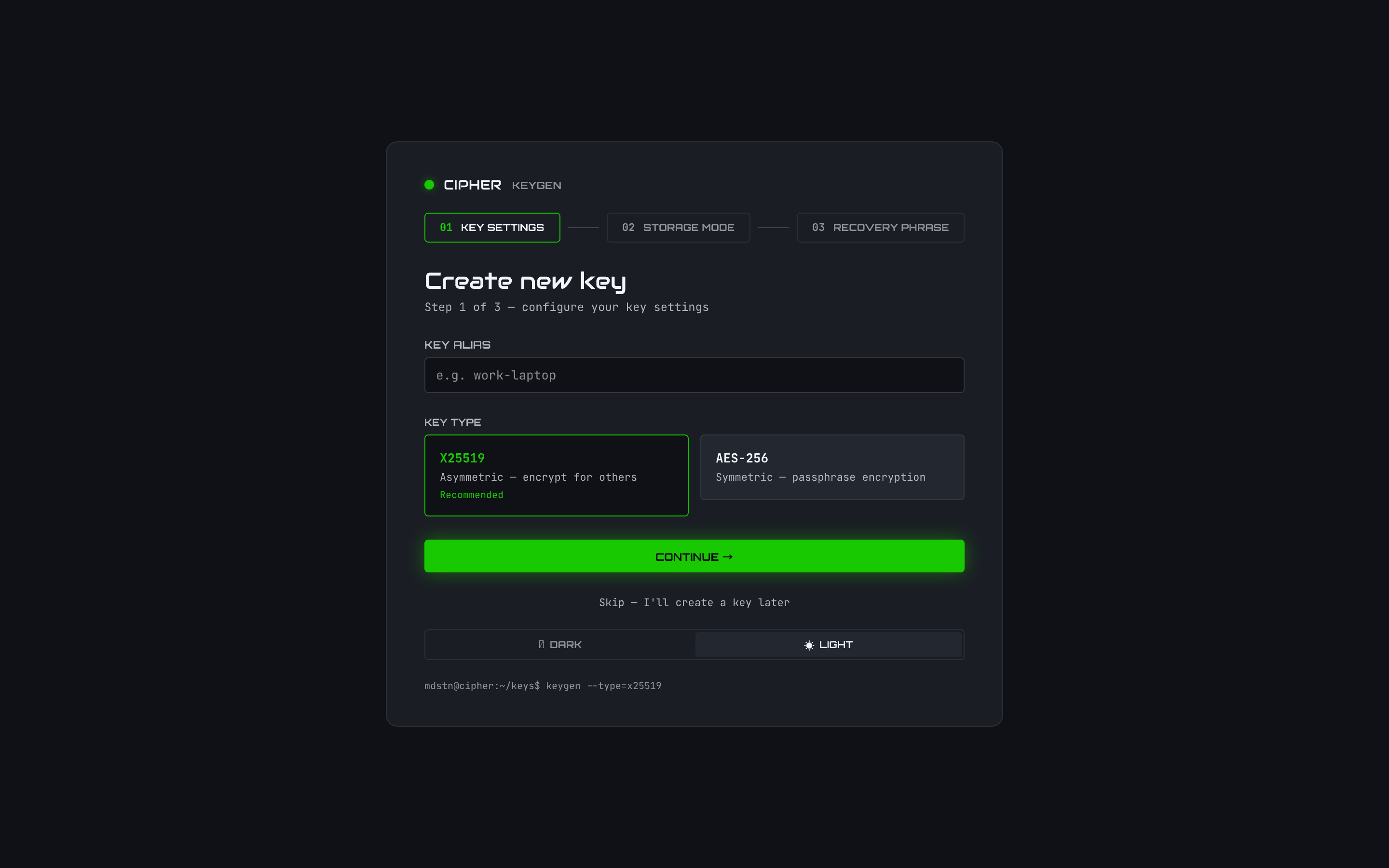
/keys/new walks you through key creation in a short wizard: choose the key type (x25519 for
encrypting to recipients, or aes256), set an optional alias and expiry, and choose how the key
is stored. The CLI equivalent is mdstn-cipher keys create.
Shared keys
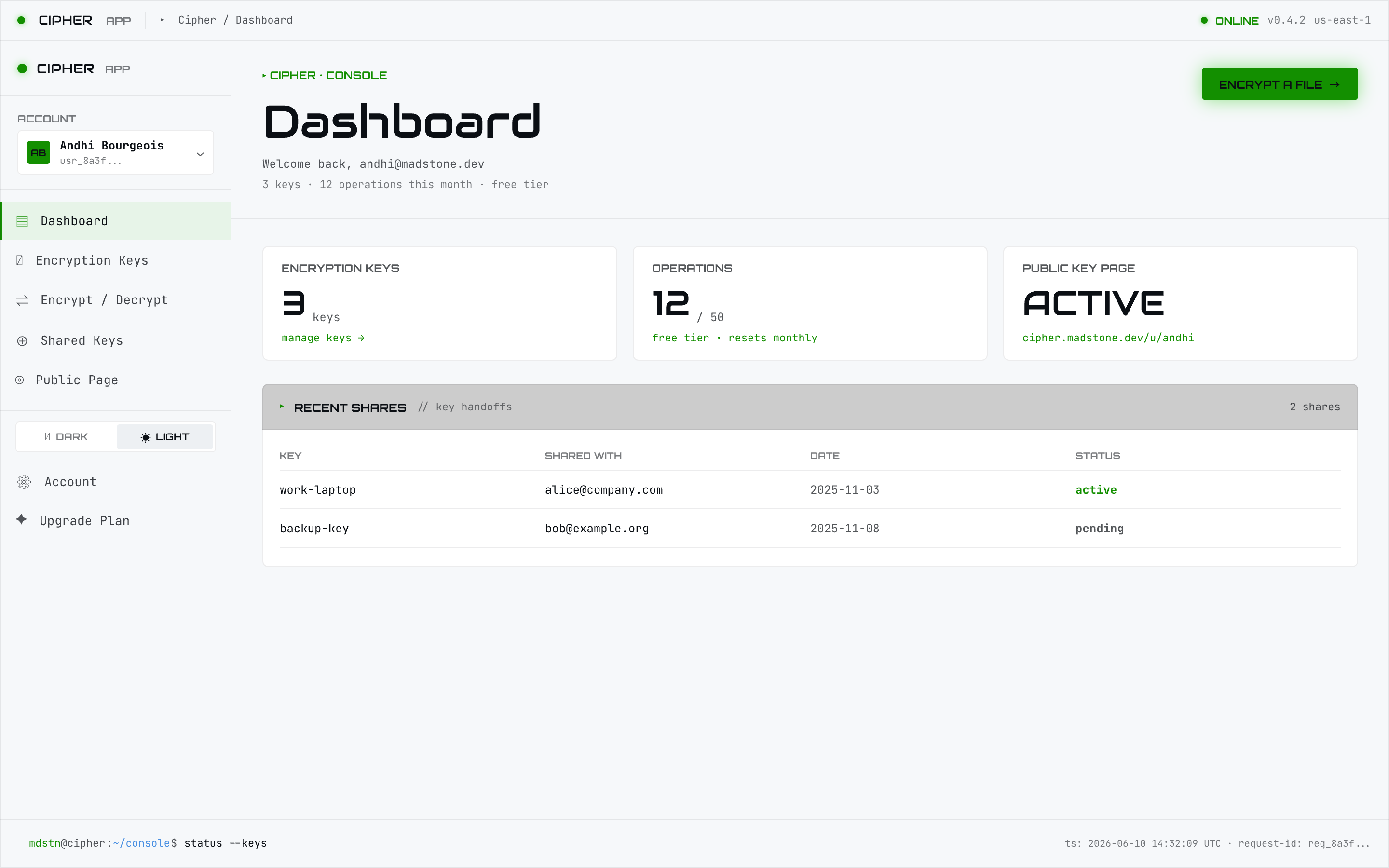
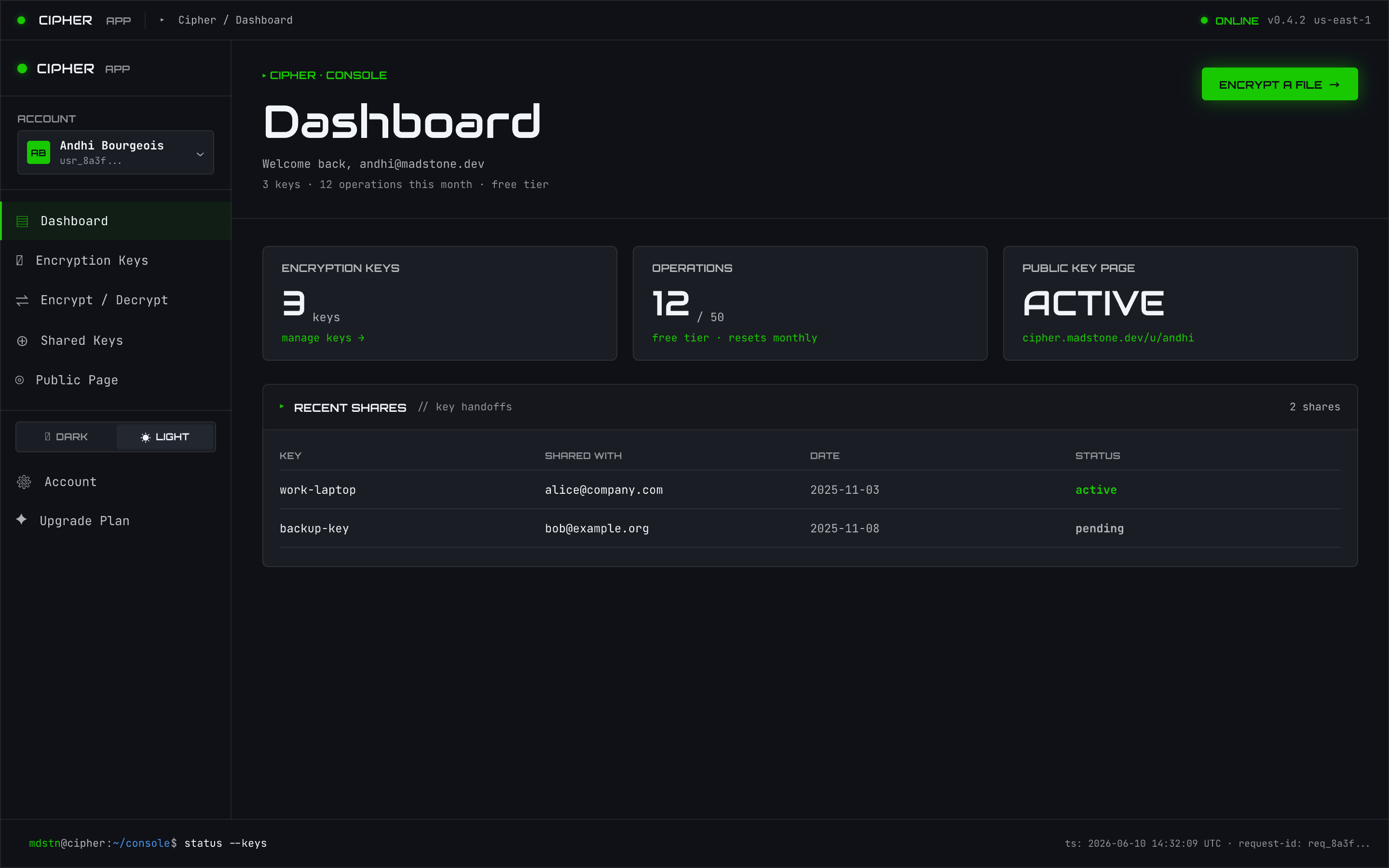
The shares page (/shares) shows keys you’ve shared with teammates and grants you’ve received,
using the same policy/grant model as the share command. You can
create a share and revoke a grant from here.